Download the Server viewer tool here.
Last changed: 23 September 2024
Download the zipfile
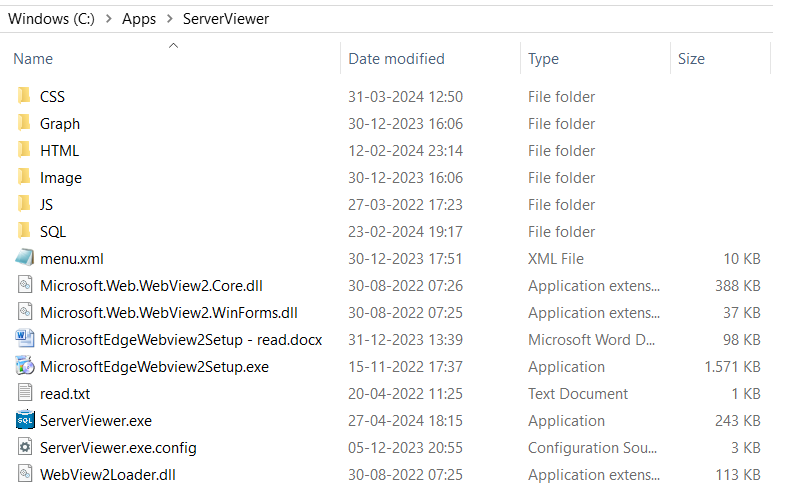
Create a folder structure like this: C:\Apps
This is the latest new release.
Download the zipfile ServerViewer.zip (exe = Version 2.41.0), read the disclaimer, privacy and terms of usage first.
Unzip the zipfile in the folder C:\Apps and select the folder C:\Apps to extract so that a folder structure like this exists C:\Apps\ServerViewer.
For now use this folder C:\Apps because in the config file and some of the SQL text files (in the folder SQL) are using this location. This can be changed later.
Open and update the configfile
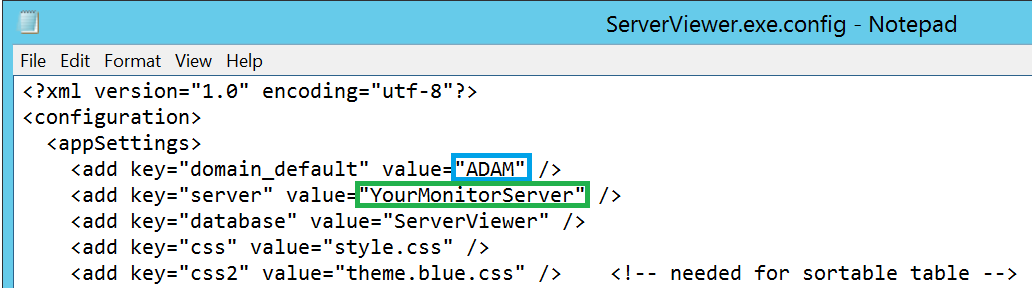
Open the config file 'ServerViewer.exe.config'. Two fields must be changed: 'domain_default' en 'server'.Update the value for the key field domain_default
Change the value at the key="domain_default". Change this into the domain in which your monitor server resides. Is there no domain because you are testing locally: leave the setting as is.
The field 'Domain' in the table 'Servers' needs to be the same at the monitor server as specified in the config file: ServerViewer.exe.config (see blue).
Update the value for the key field server
On the next line at key='server' value='YourMonitorServer' give the name of the monitor server which contains the database 'ServerViewer' (see green).
In the table the monitor server is called 'Server1'. Replace the tekst 'YourMonitorServer' with 'Server1' in the file ServerViewer.exe.config.
If you have added 'Server1' to the table 'Servers' previously then you should change the field ServerName = 'Server1' with the actual servername.
So in your configuration both the table and the config file should be changed into the actual servername.
Table 'Servers':

If you have executed the steps under Database and added the server 'Server1' (or the actual servername) then you are ready to go.
In your situation the actual servername is here.
Start the program
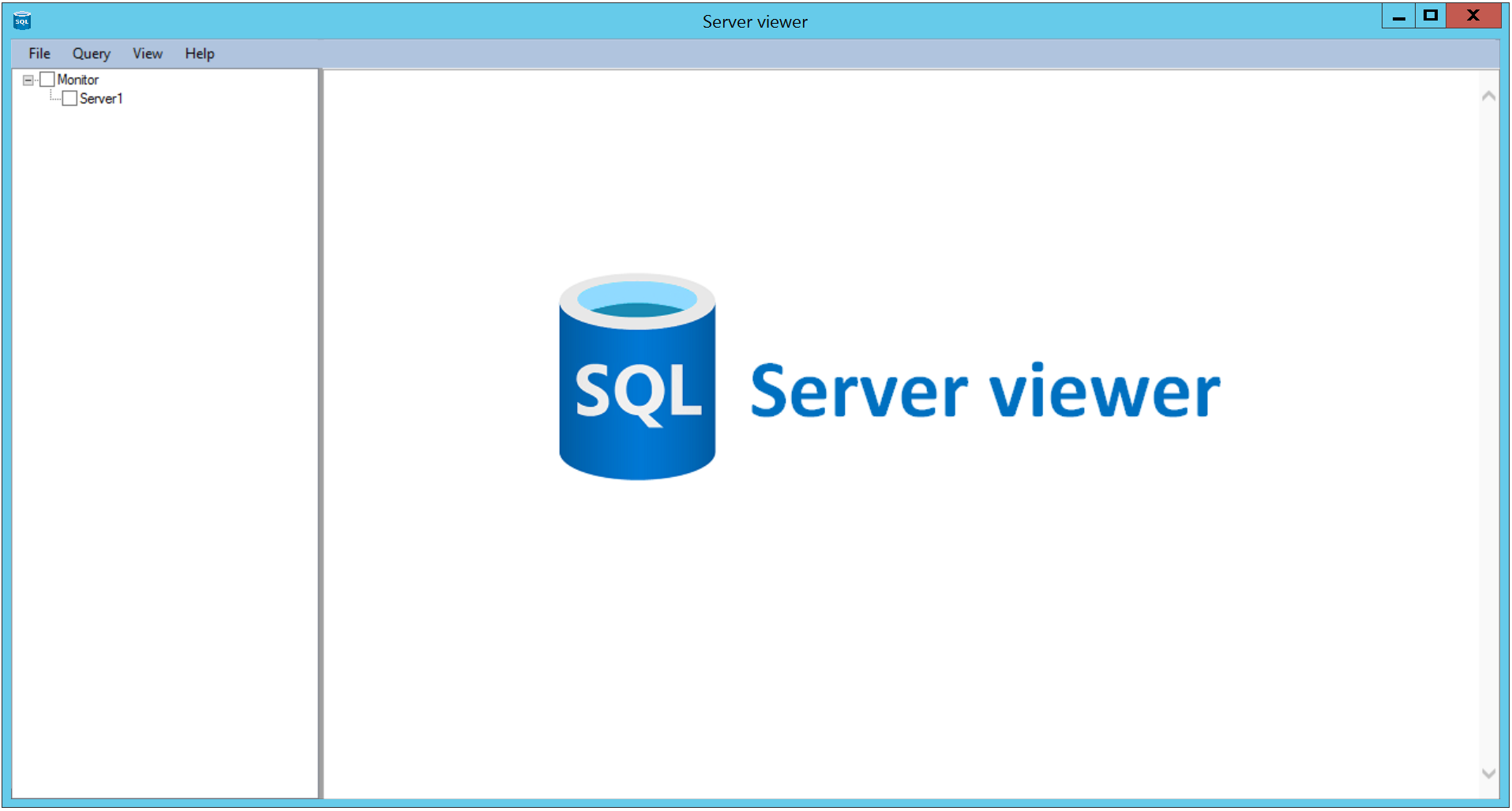
From within the folder C:\Apps\ServerViewer you can start ServerViewer.exe with the AD account (your login). This account also should have access on all SQL servers that are added to the table 'Servers'.Click OK at the info screen in the unlicensed version.
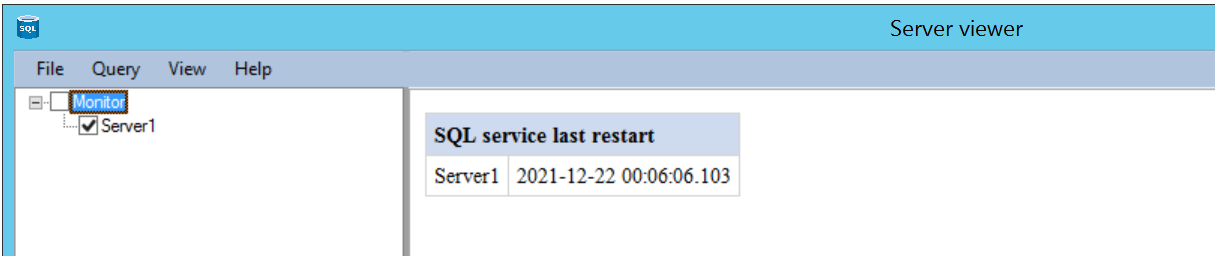
To test if the connection is OK: check the server Server1 = the monitor server. Right click in the server list and select Server, SQL service last restart.
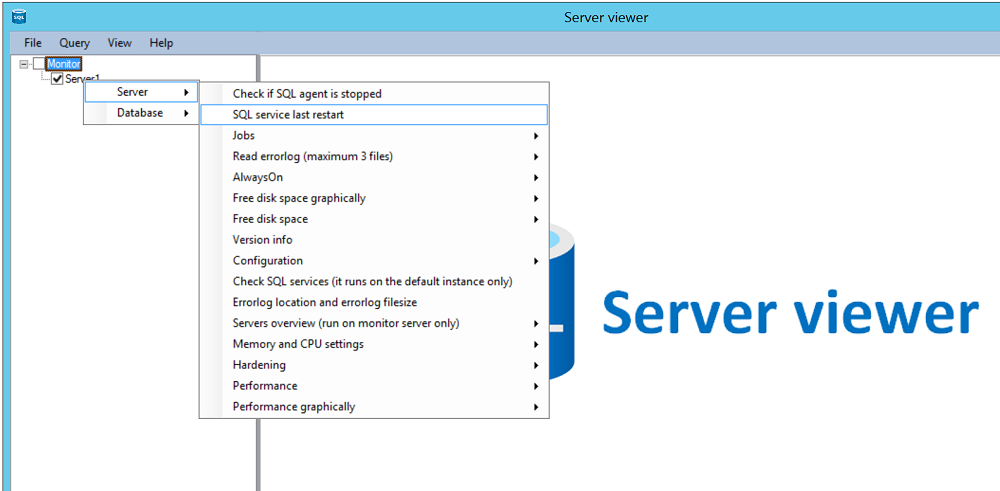
A similar result should appear.